


Okta Workflows is a no-code platform for automating identity processes.
This blog post is based on a question asked during office hours or the #okta-workflows channel in MacAdmins Slack: How to write output from the List Users card to a CSV file?
Getting started
You run a search with Okta – List Users with Filter card (or using any other search/filter card) and would like to save the result into a CSV file. This how-to guide will show you how to do that.
The workflow has the following steps:
- Find users
- Save to table
- Export the table to a CSV file
This is the main flow:
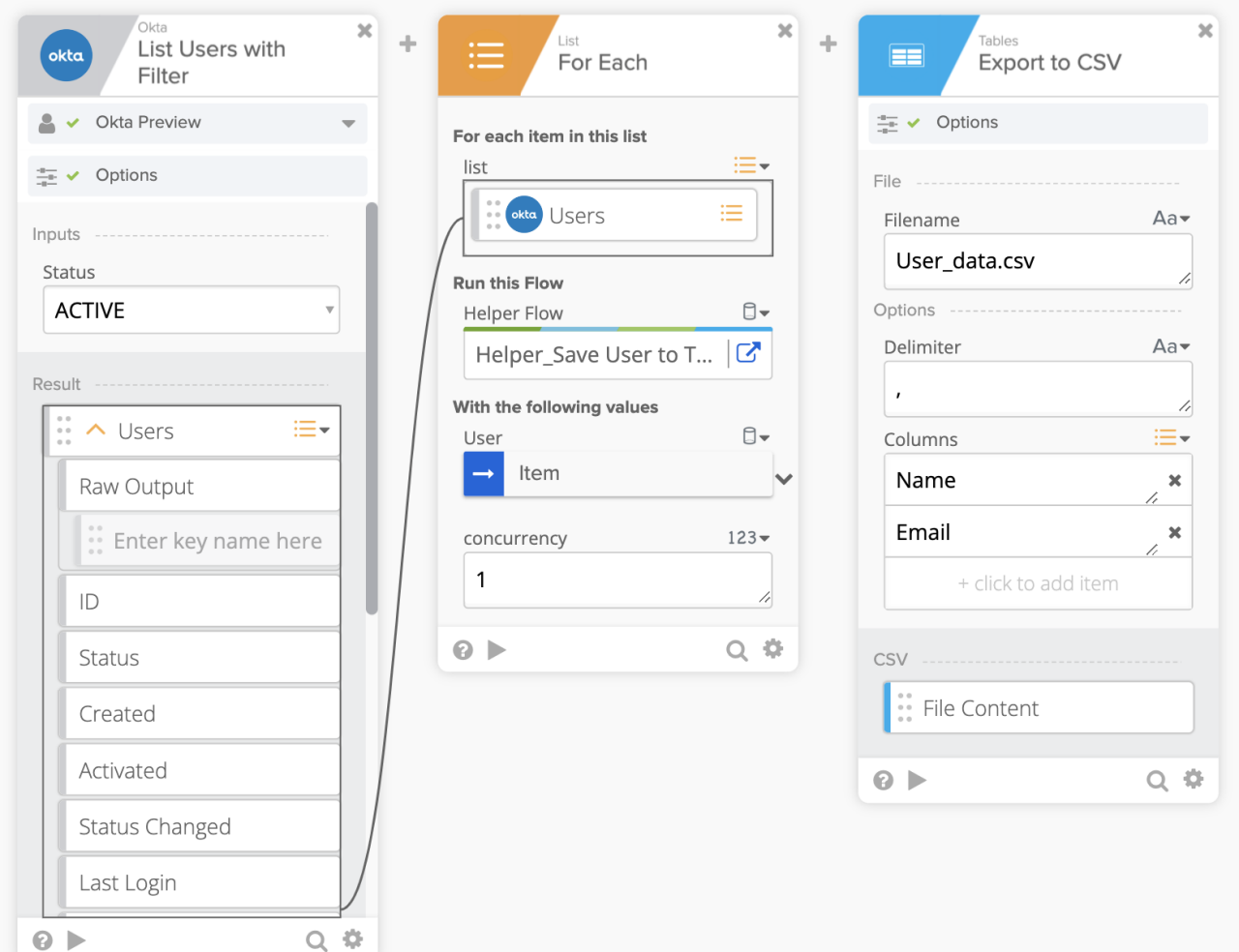 A flow to save users to a CSV file
- Okta – List Users with Filter card finds the users to save to a CSV file
- List – For Each card goes over each user and saves the user to a table using a helper flow (see below). The entire User record is passed to the helper flow
- Tables – Export to CSV card saves data from a table into a CSV file. You specify the CSV file name and, optionally, specify which columns to export. In this example, the columns Name and Email are exported.
The table has two (custom) columns: Name and Email:
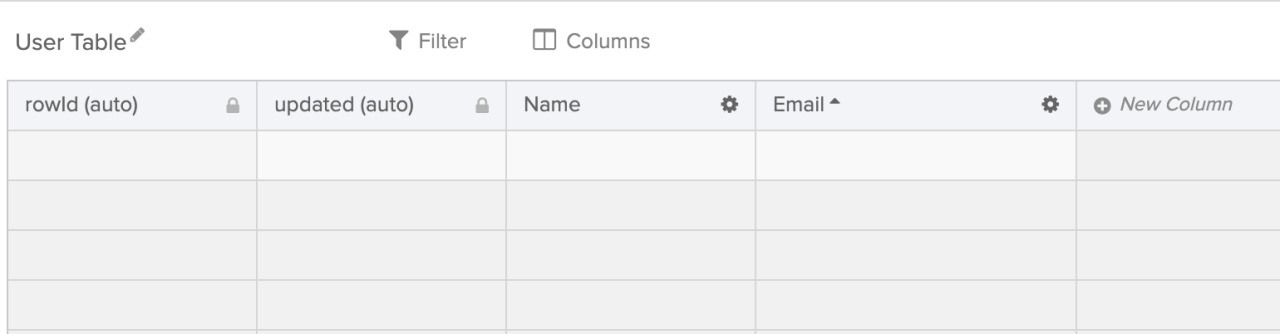 Workflows table with two columns
This is the helper flow that saves each user found into a table:
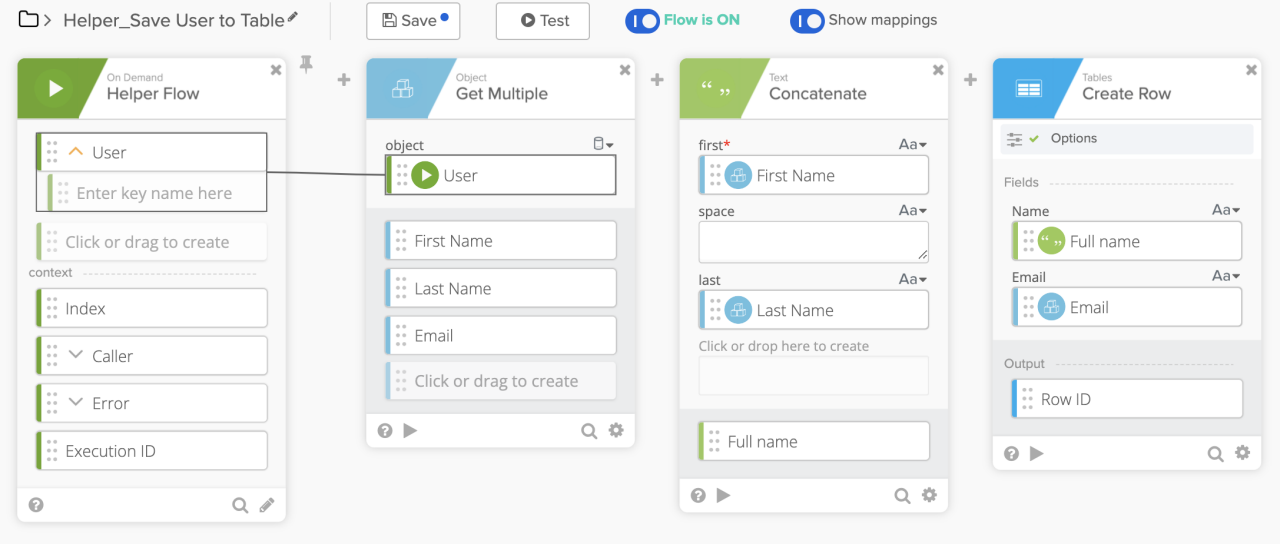 Save user information into a table
The flow has these steps:
- Helper Flow card receives the User record
- Get Multiple card retrieves First Name, Last Name, and Email fields from a user
- Concatenate card creates a Full name from First Name and Last Name fields
- And the last, Table – Create Row card, saves each user information into a table
Learn: How to Setup a Workflows Helper Flow (With For-Each and Streaming Cards)
When the main flow is run, the table is populated with user data:
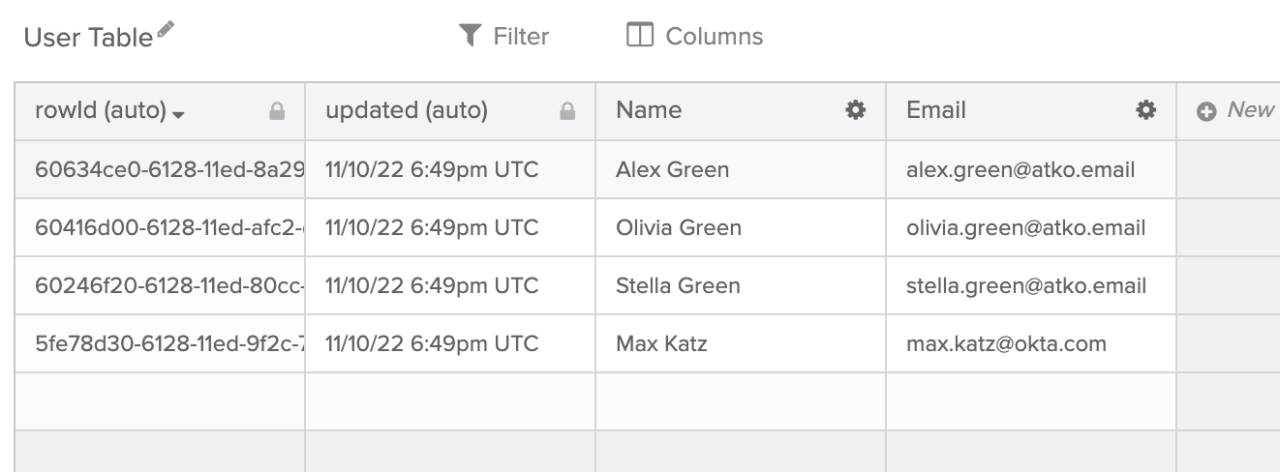 Table with user data
Looking at the main flow history, the Tables – Export to CSV card returns a file that you can download:
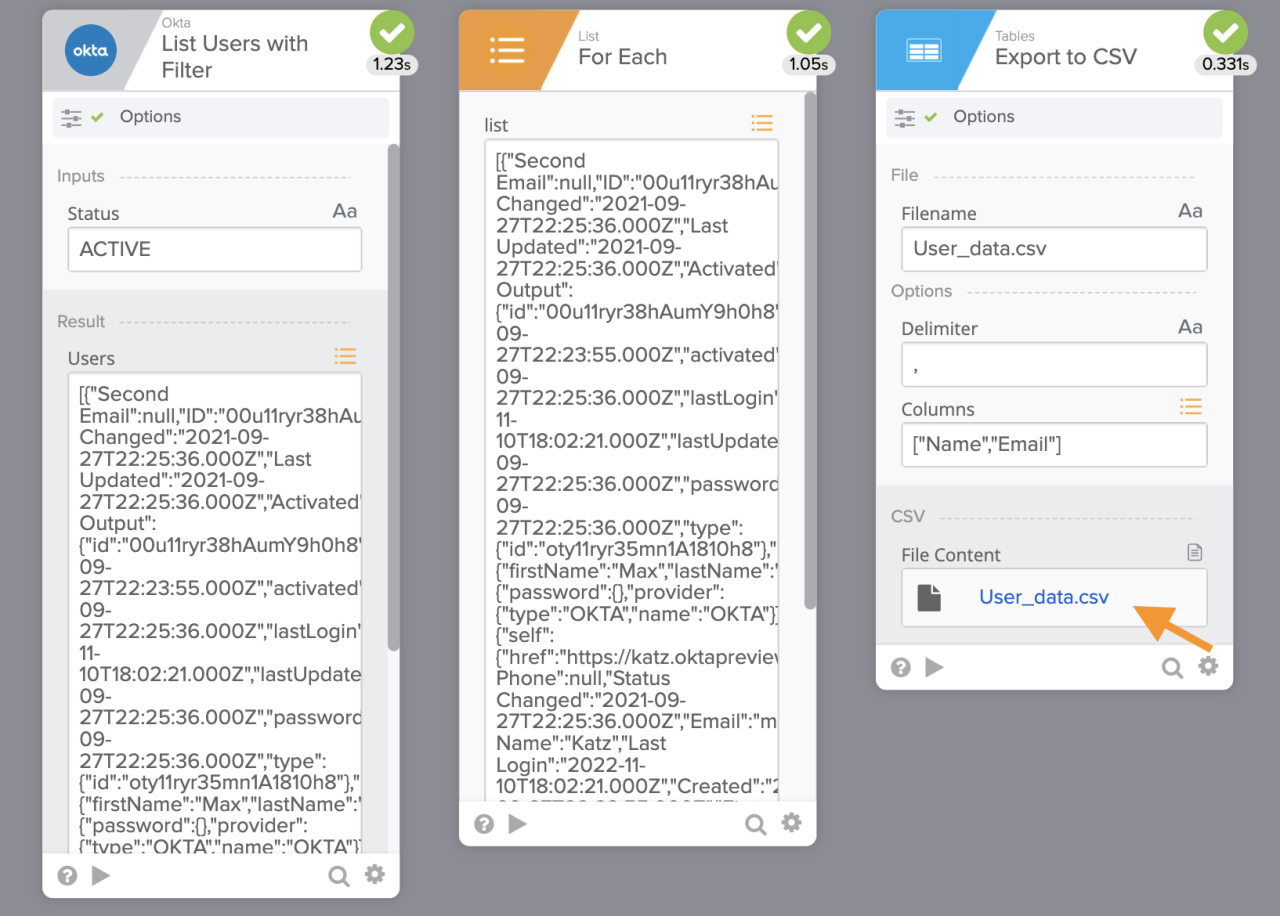 Main flow history
Opening User_data.csv file in Numbers:
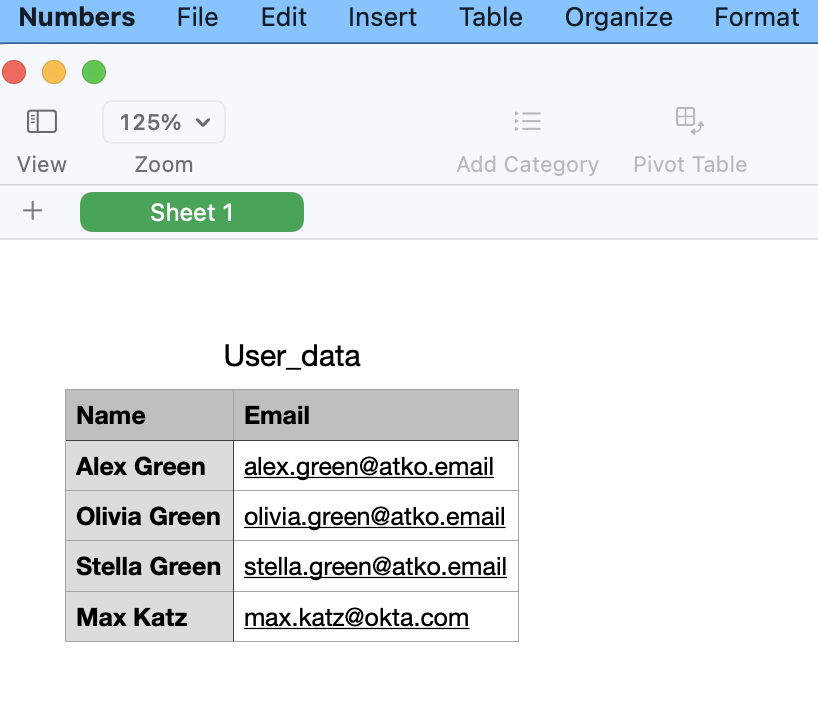 Opening the CSV file in Numbers
Get your Workflows questions answered
Do you have a question about Okta Workflows? Not sure how to build a flow? Join the weekly community office hours to get help.


