Productos
Nuestras plataformas protegen todo tipo de identidad: desde identidades de agentes de IA hasta las identidades de tus clientes, empleados y partners.
Nuestras plataformas protegen todo tipo de identidad: desde identidades de agentes de IA hasta las identidades de tus clientes, empleados y partners.
Okta es una plataforma neutral, potente y ampliable que coloca la identidad en el centro de tu tecnología.
Okta y Auth0 ofrecen un acceso flexible y seguro. Desarrolla con rapidez gracias a nuestras plataformas ampliables para clientes, personal e identidades no humanas.
Nuestras plataformas protegen todo tipo de identidad: desde identidades de agentes de IA hasta las identidades de tus clientes, empleados y partners.
Nuestras plataformas protegen todo tipo de identidad: desde identidades de agentes de IA hasta las identidades de tus clientes, empleados y partners.
Okta es una plataforma neutral, potente y ampliable que coloca la identidad en el centro de tu tecnología.
Okta y Auth0 ofrecen un acceso flexible y seguro. Desarrolla con rapidez gracias a nuestras plataformas ampliables para clientes, personal e identidades no humanas.
Nuestras plataformas protegen todo tipo de identidad: desde identidades de agentes de IA hasta las identidades de tus clientes, empleados y partners.
Leverage the power of Okta and increase adoption of your SaaS application by embeddeding Okta Cloud Connect (OCC) into your product
Okta offers Okta Cloud Connect (OCC) program for ISV partners with the need to quickly and easily connect to customer’s AD infrastructure for authentication and lifecycle management support. For customers, OCC is a free offering for an unlimited time, and for an unlimited number of users to be used with a single ISV application. To learn more about the OCC program, visit the Okta Cloud Connect page.
Embedded OCC takes this one step further by providing an even more seamless user experience for your customers through the following:
At a high-level, the runtime flow/administrator experience is as follows:
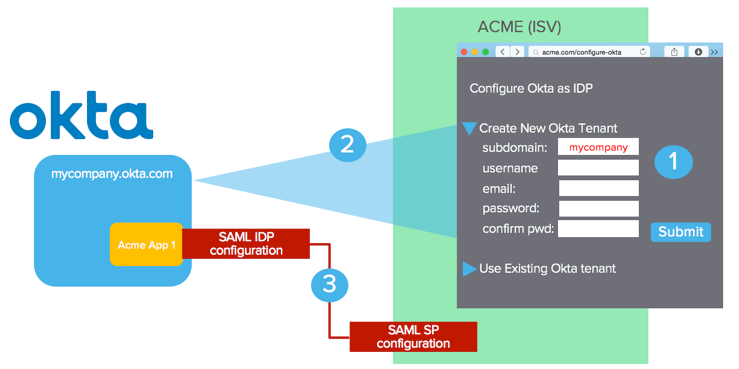
In this example, ISV is “ACME” – customer is “mycompany”
If the customer is an existing Okta customer or already has an Okta tenant, an option should be provided to carry out step 3) only. In the diagram above, the “User Existing Okta tenant” option should prompt for tenant-specific information for app instantiation only. More details to follow.
Any ISVs interested in Embedded-OCC should contact Okta (developers@okta.com). Special privilege needs to be granted to an API user of your choice before you are allowed to create new tenants. Here is how the tenant creation privilege is set up:
In general, ISVs are expected to test out their implementation on .oktapreview.com first. Once the implementation has been reviewed and tested on *.oktapreview.com, Okta will then grant tenant creation privilege for the production environment (.okta.com) in your production implementation.
You may choose to ONLY allow your production environment to create Okta tenants in *.okta.com. Best practice is to support both *.okta.com and *.oktapreview.com as we have seen situations where this is useful for sandbox setup, UAT testing and diagnostics for your customers and your own testing.
You need to build and expose an administrator user interface to allow the following options:
You need to prompt for the following:
Note that the password policy and 2-factor settings in the Okta tenant can be modified by the customer once the tenant is created.
If the administrator wants to use an existing Okta tenant, you should prompt for the following in order to instantiate your application with the given Okta tenant:
Continue with the “ACME” (ISV) and “mycompany” (customer) as an example.
Okta has granted access to a system account (system user) in https://{yourOktaDomain}.com. You must create an API token for this user, follow the steps in Getting a token to perform this action.
To test if the token is valid, you can try the following curl command:
curl -v -H "Authorization:SSWS <API token>" -H "Accept:application/json" -H "Content-type:application/json" -X GET https://{yourOktaDomain}.com/api/v1/users/me
The following curl command will create a new Okta tenant. If you use a *.okta.com token, the tenant will be created under *.okta.com.
curl -v -H "Authorization:SSWS <API token>" \
 -H "Accept:application/json" \
 -H "Content-type:application/json" \
 -X POST https://{yourOktaDomain}.com/api/v1/orgs \
 -d ‘{
        "subdomain": "mycompany",
        "name": "MyCompany Inc",
        "website": "https://www.mycompany.com",
        "edition": "DIRECTORY",
        "licensing": {
            "apps": ["boxnet"]
            },
        "admin": {
            "profile": {
                "firstName": "Joe",
                "lastName": "Smith",
                "email": "joe@mycompany.com",
                "login": "joe@mycompany.com",
                "mobilePhone": null
            },
            "credentials": {
                "password": {
                    "value": "L0v30ktA!"
                },
                "recovery_question": {
                    "question": "What is your favorite IDaaS?",
                    "answer": "Okta"
                }
            }
        }
    }’
Some additional parameters are needed in the request beyond the input from your UI discussed earlier.
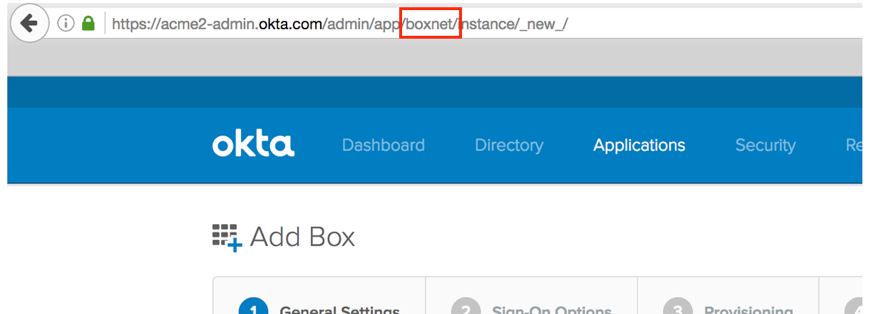
Here is a sample response from a successful call.
{
    "id": "00o8abcd3myfI6FM1234",
    "subdomain": "mycompany",
    "name": "MyCompany Inc",
    "website": "https://www.mycompany.com",
    "status": "ACTIVE",
    "edition": "DIRECTORY",
    "expiresAt": null,
    "created": "2016-11-08T15:16:01.000Z",
    "lastUpdated": "2016-11-08T15:16:01.000Z",
    "licensing": {
        "apps": [ "boxnet"]
    },
    "settings": {
        "app": {
            "errorRedirectUrl": null,
            "interstitialUrl": null,
            "interstitialMinWaitTime": 1200
        },
        "userAccount": {
            "attributes": {
                "secondaryEmail": true,
                "secondaryImage": true
            }
        },
        "portal": {
            "errorRedirectUrl": null,
            "signOutUrl": null
        }
    },
    "token": "00AbCdefghPijn7s7sue77oi7zz7zzZZxyzOHa7XyZ",
    "tokenType": "SSWS",
    "_links": {
        "organization": {
            "href": "https://{yourOktaDomain}.com/api/v1/orgs/sleedemo1"
        },
        "administrator": {
            "href": "https://{yourOktaDomain}.com/api/v1/users/00u1abcd1Abcd11a1a1"
        },
        "policy": {
            "href": "https://{yourOktaDomain}.com/api/v1/orgs/sleedemo1/policy"
        },
        "contacts": {
            "href": "https://{yourOktaDomain}.com/api/v1/orgs/sleedemo1/contacts"
        }
    }
}
Now that you have created the Okta tenant, the next API call is to instantiate the app instance. You need two pieces of information for this:
Depending on the set of inputs required to set up SAML for your app in Okta, the input parameters. An example here is the “servicenow_app2” SAML app instantiation. The only parameter needed is “loginURL” which is set to the SAML endpoint on the ServiceNow side.
curl -v -H "Authorization:SSWS <API token>" \
 -H "Accept:application/json" -H "Content-type:application/json" \
 -X POST https://{yourOktaDomain}.com/api/v1/apps \
 -d  '{
        "name": "servicenow_app2",
        "status": "ACTIVE",
        "signOnMode": "SAML_2_0",
        "settings": {
            "app": {
                "loginURL": "https://sleetesting.com/sso/saml"
            }
        }
    }'
The name parameter value above is to be replaced with the name of your application
Refer to the apps api documentation for details about responses and error codes.
At this point, the app instance in Okta is created and Okta is now aware of the SAML SP information based on your input in the app instantiation API call. Now you need to get the SAML IDP Metadata from Okta to complete the SAML configuration in your environment. The response property _links.metadata.href is the endpoint to be used to fetch the IDP metadata. The response will be returned in XML format.
The following curl command will return the SAML IDP metadata (based on an example _links.metadata.href value).
Note the “application/xml” value for both “Accept” and “Content-type”
curl -v -H "Authorization:SSWS <API Token>" \
 -H "Accept:application/xml" \
 -H "Content-type:application/xml" \
 -X GET https://{yourOktaDomain}.com/api/v1/apps/0oa19jdq4ytHHtfgk1d8/sso/saml/metadata
Here is a sample response from a successful call:
  <?xml version="1.0" encoding="UTF-8"?>
  <md:EntityDescriptor xmlns:md="urn:oasis:names:tc:SAML:2.0:metadata" entityID="exk19jdq4yshW8Ru71d8">
    <md:IDPSSODescriptor WantAuthnRequestsSigned="false" protocolSupportEnumeration="urn:oasis:names:tc:SAML:2.0:protocol">
        <md:KeyDescriptor use="signing">
            <ds:KeyInfo xmlns:ds="http://www.w3.org/2000/09/xmldsig#">
                <ds:X509Data>
                    <ds:X509Certificate>
                        MIIDmjCCAoKgAwIBAgIGAUtB...cXa14=
                    </ds:X509Certificate>
                </ds:X509Data>
            </ds:KeyInfo>
        </md:KeyDescriptor>
        <md:NameIDFormat>urn:oasis:names:tc:SAML:1.1:nameid-format:emailAddress</md:NameIDFormat>
        <md:NameIDFormat>urn:oasis:names:tc:SAML:1.1:nameid-format:unspecified</md:NameIDFormat>
        <md:SingleSignOnService Binding="urn:oasis:names:tc:SAML:2.0:bindings:HTTP-POST" Location="https://{yourOktaDomain}.com/app/servicenow_app2/exk19jdq4yshW8Ru71d8/sso/saml"/>
        <md:SingleSignOnService Binding="urn:oasis:names:tc:SAML:2.0:bindings:HTTP-Redirect" Location="https://{yourOktaDomain}.com/app/servicenow_app2/exk19jdq4yshW8Ru71d8/sso/saml"/>
    </md:IDPSSODescriptor>
</md:EntityDescriptor>
Below we provide a list of error codes that could be encountered, for more details on error codes and http response codes from Okta please refer to our Error Codes
{
   "errorCode": "E0000088",
   "errorSummary": "Api validation failed: subDomain",
   "errorLink": "E0000088",
   "errorId": "08ab79d407eafb1c",
   "errorCauses": [
        {
            "errorSummary": "subDomain: An object with this field already exists"
        }
    ]
}
{
    "errorCode": "E0000011",
    "errorSummary": "Invalid token provided",
    "errorLink": "E0000011",
    "errorId": "oaetOwX4JU-TD2EJUf2Vh9H1Q",
    "errorCauses": []
}
{
    "errorCode": "E0000007",
    "errorSummary": "Not found: Resource not found: badappname (App)",
    "errorLink": "E0000007",
    "errorId": "oaeqE8V21bkSfy50jiJPgF1Zg",
    "errorCauses": []
}
{
    "errorCode": "E0000001",
    "errorSummary": "Api validation failed: admin.password",
    "errorLink": "E0000001",
    "errorId": "oaeE4lry9XFR_aZq6yJ-3uGsw",
    "errorCauses": [
        {
            "errorSummary": "admin.password: Password requirements were not met. Your password must have at least 8 characters, a lowercase letter, an uppercase letter, a number, no parts of your username."
        }
    ]
}
{
    "errorCode": "E0000001",
    "errorSummary": "Api validation failed: website",
    "errorLink": "E0000001",
    "errorId": "oaeswACavHpT3KAfRv8RwqrAw",
    "errorCauses": [
        {
            "errorSummary": "website: The field cannot be left blank"
        }
    ]
}
{
    "errorCode": "E0000001",
    "errorSummary": "Api validation failed: admin.customSecurityQuestion",
    "errorLink": "E0000001",
    "errorId": "oaebCAc-TxcT8y2fzG_vfvZgA",
    "errorCauses": [
        {
            "errorSummary": "admin.customSecurityQuestion: The field cannot be left blank"
        }
    ]
}
{
    "errorCode": "E0000001",
    "errorSummary": "Api validation failed: admin.securityQuestion",
    "errorLink": "E0000001",
    "errorId": "oaeuVq3ykU8RmK-0GQoHkAVBg",
    "errorCauses": [
        {
            "errorSummary": "admin.securityQuestion: Fields must both be empty, or both non-empty"
        }
    ]
}
{
    "errorCode": "E0000007",
    "errorSummary": "Not found: Resource not found: bad_okta_app_id (App)",
    "errorLink": "E0000007",
    "errorId": "oae8P1iYH1pQw-_3NKOsMhqXg",
    "errorCauses": []
}
{
    "errorCode": "E0000001",
    "errorSummary": "Api validation failed: label",
    "errorLink": "E0000001",
    "errorId": "oae_cM34bW6TVOgQuxb2B94GA",
    "errorCauses": [
        {
            "errorSummary": "label: An active ServiceNow - Eureka and later releases instance with the label \"SLEE Test\" already exists."
        }
    ]
}
{
    "errorCode":"E0000005",
    "errorSummary":"Invalid session",
    "errorLink":"E0000005",
    "errorId":"oae1_E9HWBkQn-EcYT828MzKg",
    "errorCauses":[]
}


