





Recently, Okta enabled a new enrollment flow intended to streamline the process for users. It’s called Same Device Enrollment, and it allows a user to enroll into Okta Verify on the device they’re currently using with fewer steps. Okta Verify's Same Device Enrollment introduces a significant leap in security, offering a phishing-resistant and intuitive solution for users. This new flow addresses critical vulnerabilities present in older browser-based enrollment methods, such as QR codes, SMS, and email, which were susceptible to interception by malicious actors. The updated process ensures adherence to authentication policies and securely retrieves necessary authorization tokens, thereby enhancing the overall security posture of user enrollments.
The Need For Streamlined and Secure Enrollment:
In the past, our browser-based enrollment flows prioritized enrolling on a mobile device; when a user would try to add an Okta Verify enrollment to their account, they could either scan a QR code displayed on the browser with a mobile device or send an SMS text or email to the mobile device with an activation link to enroll.
The existing approach presented several problems:
- Mobile Enrollment Limitation: Users already on their mobile device could not scan the QR code, forcing them to rely on less secure SMS or email methods.
- Desktop Enrollment Limitation: Users on a desktop device could not use the browser-based flow to enroll on that same device; they were essentially required to enroll on a separate mobile device.
- Security Risk: The most critical issue was that QR, email, and SMS enrollment methods are inherently insecure, as a malicious actor could easily intercept the QR code, email, or SMS to enroll their own device.
The New Approach:
A new model was needed, one that allowed the user to securely authenticate on the enrolling device, to ensure that your organization’s authentication policies are heeded. For organizations using the latest Okta Identity Engine, users were already able to enroll in a more secure way by manually authenticating via OIDC to retrieve the appropriate auth tokens to allow enrollment. So we opted to utilize that existing flow but provide some semi-automated pathways to guide the users.
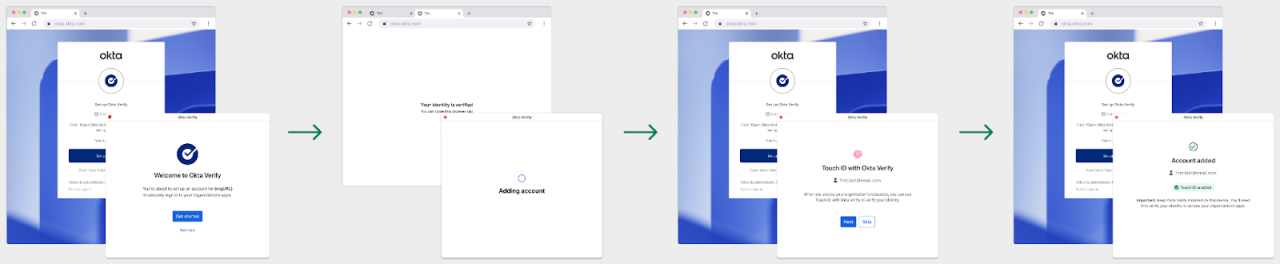
With this feature enabled, when the user attempts to enroll in Okta Verify through the Sign-in widget, the browser will automatically launch the Okta Verify app, and the app will bring the user into an OIDC flow to receive an auth token with the right permissions and scopes to allow enrollment.
This new approach represents a significant advancement in security. By moving away from vulnerable browser-based enrollment methods on mobile devices, which were susceptible to interception, the new OIDC-based flow ensures a phishing-resistant and more intuitive enrollment process.
Using Same Device Enrollment:
To enable Same Device Enrollment, ensure that Fastpass is activated within your Okta Verify authenticator settings.
Configure Okta Verify Security Settings:
- High Security: Choose "High security" to enforce Same Device Enrollment as the exclusive method for Okta Verify enrollment.
- Any Security: Select "Any security" to provide users with the option of enrolling via mobile-based methods in addition to Same Device Enrollment.
For additional assistance on these settings, please consult the documentation.
Flow Diagram
Have questions about this blog post? Reach out to us at eng_blogs@okta.com.
Explore more insightful Engineering Blogs from Okta to expand your knowledge.
Ready to join our passionate team of exceptional engineers? Visit our career page.
Unlock the potential of modern and sophisticated identity management for your organization. Contact Sales for more information.


