




Okta Workflows is a no-code platform for automating identity processes. The Workflows team holds weekly office hours where they answer builder questions.
This blog post is based on a question asked during office hours: How to read a JSON path with dot-notation in Workflows?
Getting started
As you build Workflows automation, you will likely need to read values from a JSON object. For example, from an external API endpoint that returns data as JSON. Workflows have two cards to help read (retrieve) values from JSON:
- Object – Get
- Object – Get Multiple
Use the following JSON to show how the cards work.
{
    "product": "ice cream",
    "ingredients": {
        "ingredient": [{
                "id": 100,
                "type": "chocolate"
            },
            {
                "id": 200,
                "type": "vanilla"
            },
            {
                "id": 300,
                "type": "caramel"
            }
        ]
    },
    "shop": {
        "inventory": {
            "instock": 100,
            "ordered": 50
        }
    }
}
The dot-notation is a path that corresponds to an item in JSON.
For example, a path of product will return:
ice cream
Using the Object – Get card to read JSON
In Workflows, use the Object – Get to read a JSON path:
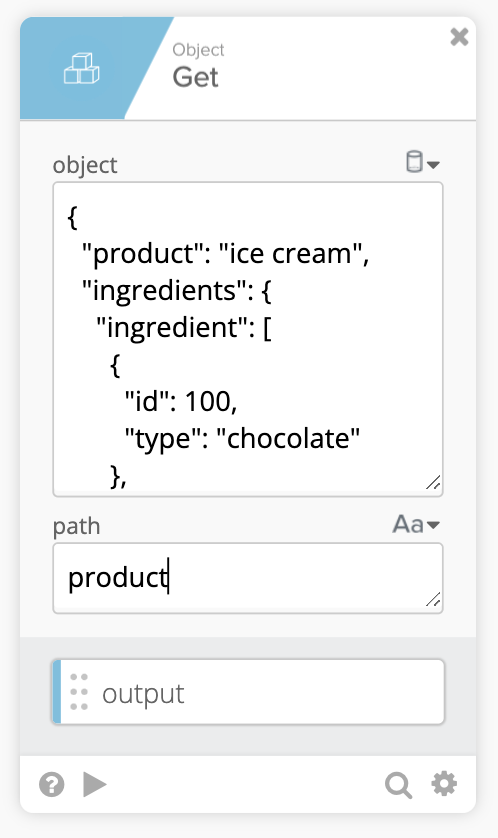 Using the Get card for reading JSON path data
Testing this card:
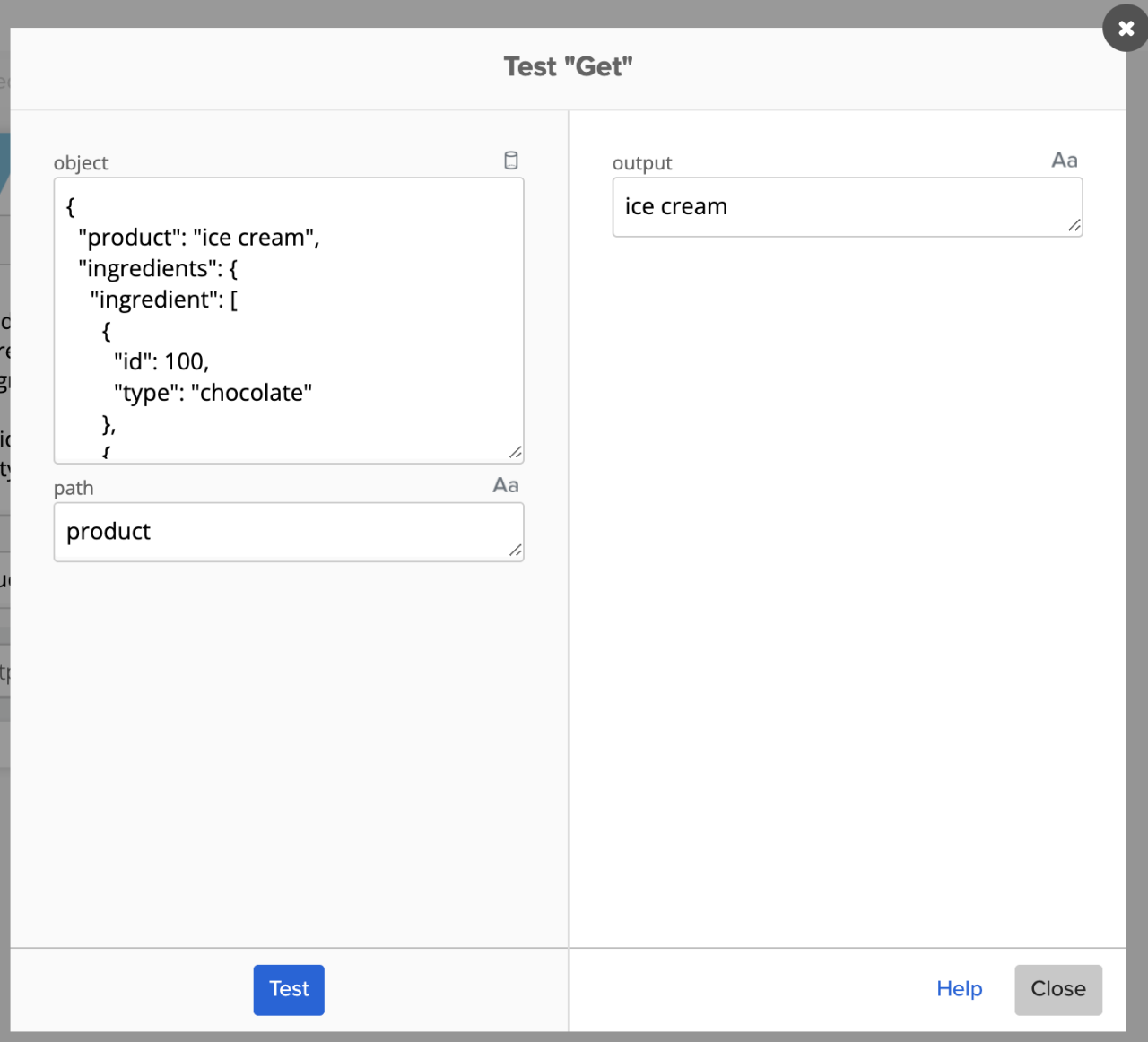 Testing the Get card
Let’s look at more examples.
Using the path ingredients.ingredient.0 will result in:
{
  "id": 100,
  "type": "chocolate"
}
Result when testing using the Object – Get card:
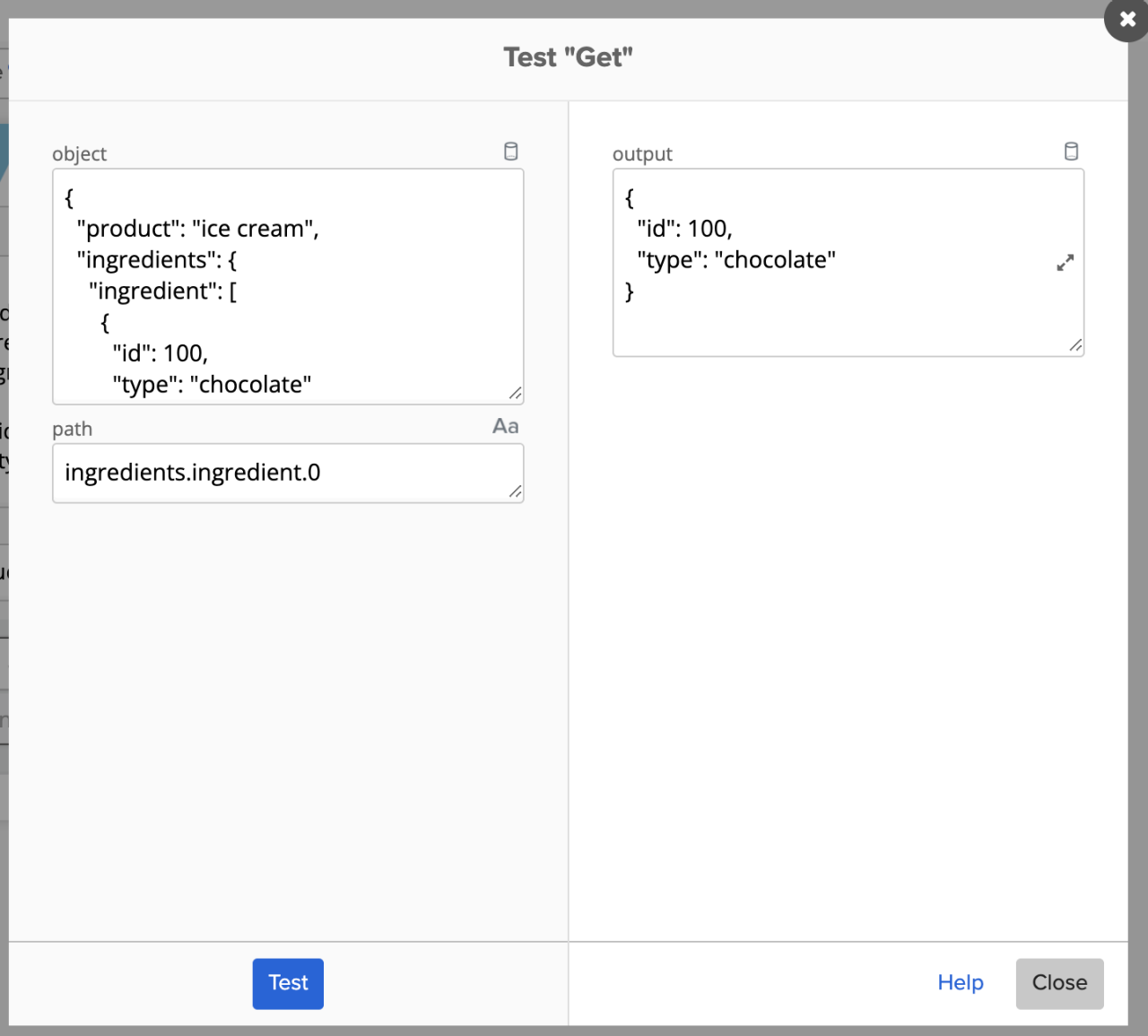 Using dot-notation in path
One thing to remember is that the output type needs to match the JSON type. If the path you entered retrieves plain text, the type should be Text. If the path retrieves an object, then the type should be set to Object (or you will get incorrect results).
Using the above example, setting the output type to Text will result in this:
![Test "Get" interface showing a JSON input object, path notation ingredients.ingredient.0, and output displaying [object Object].](/content/okta-www/us/en-us/blog/product-innovation/how-to-read-a-json-path-with-dot-notation/_jcr_content/root/container_wrapper/container_main/container_right/container/image_1649304968.coreimg.png/1787084750571/4-workflows-how-to-json-type.png) Testing the Get card with an incorrect output type
Testing the Get card with an incorrect output type
Setting correct output type:
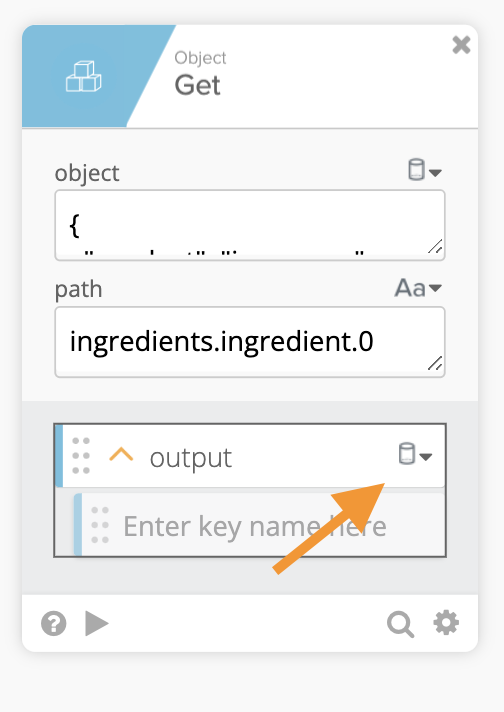 Testing the Get card with a correct output type
This example shows how to access an array with ingredients.ingredient.1.type:
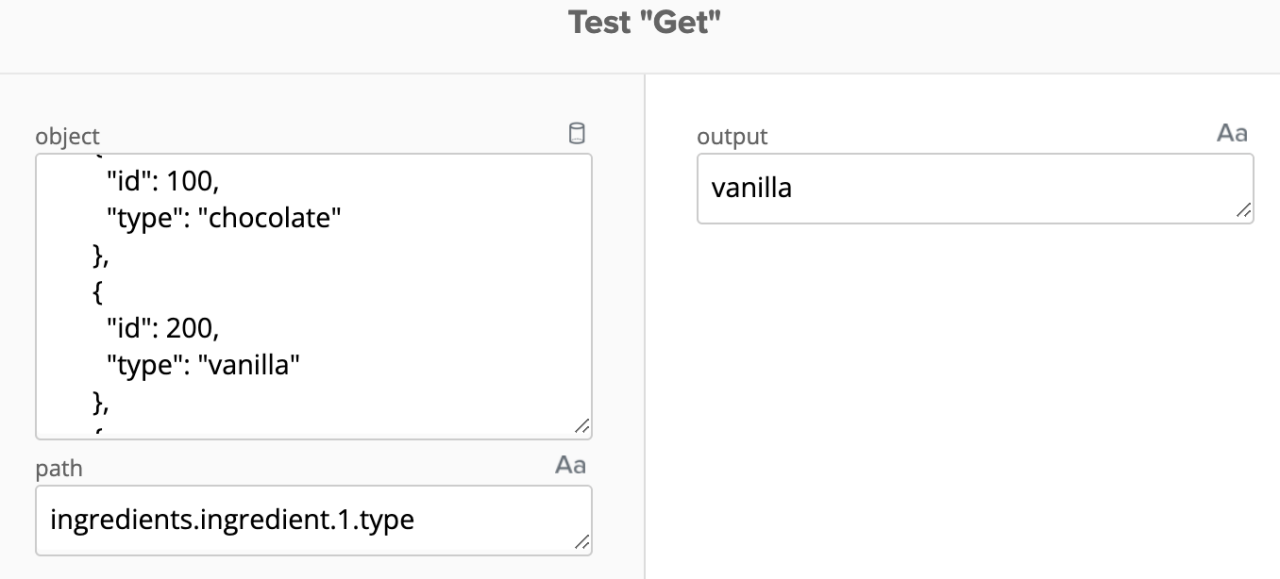 Accessing array using a dot-notation path
Note that the output type is set to Text as the output is a string.
One more example using the path of shop.inventory will return
{
   "instock": 100,
   "ordered": 50
}
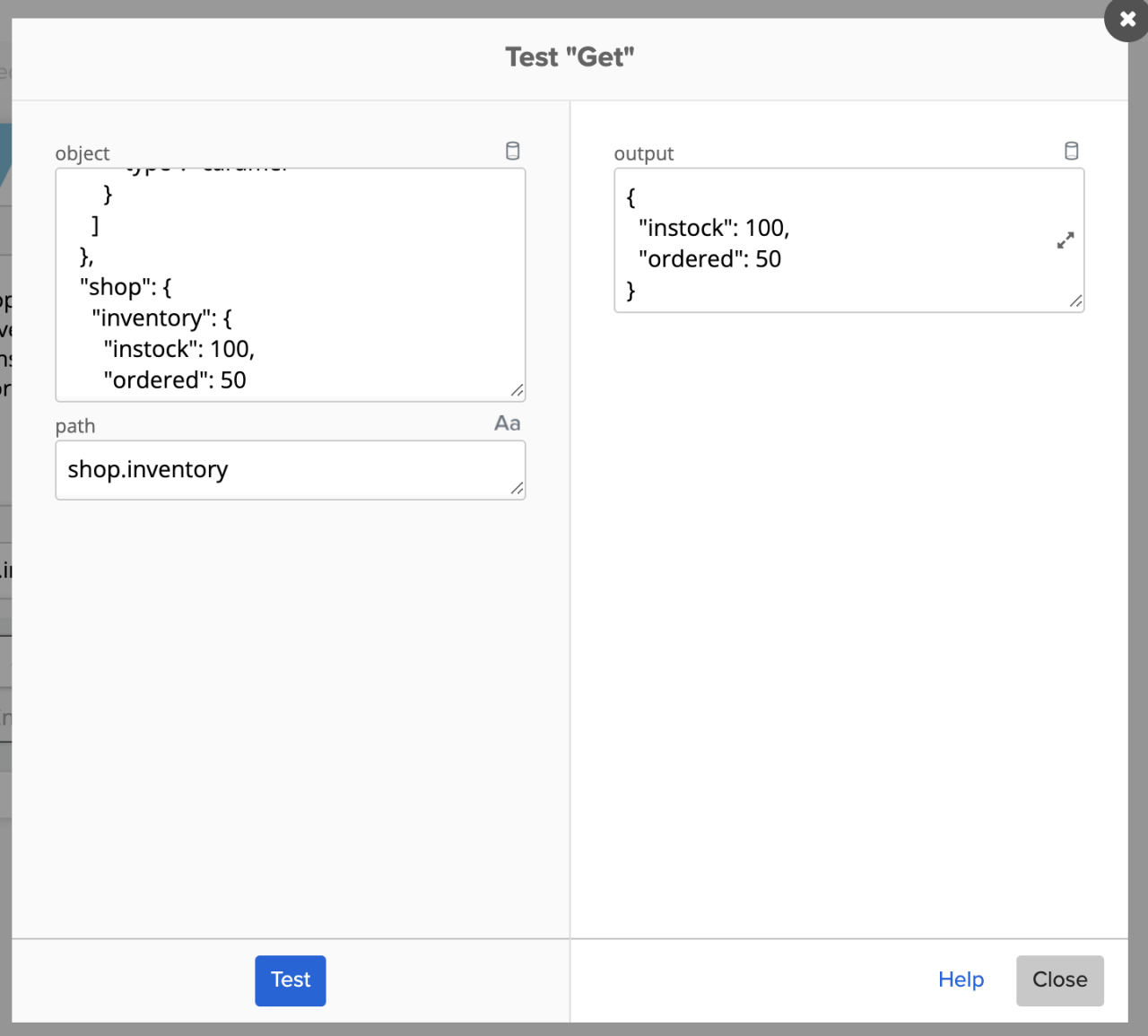 Testing the Get card to access a JSON object
Note that the output type is set to Object as the output is an object.
Using Object – Get Multiple to read JSON
Object – Get outputs a single JSON path. The Object – Get Multiple card works similarly and can output multiple paths. You enter any number of paths you need as output:
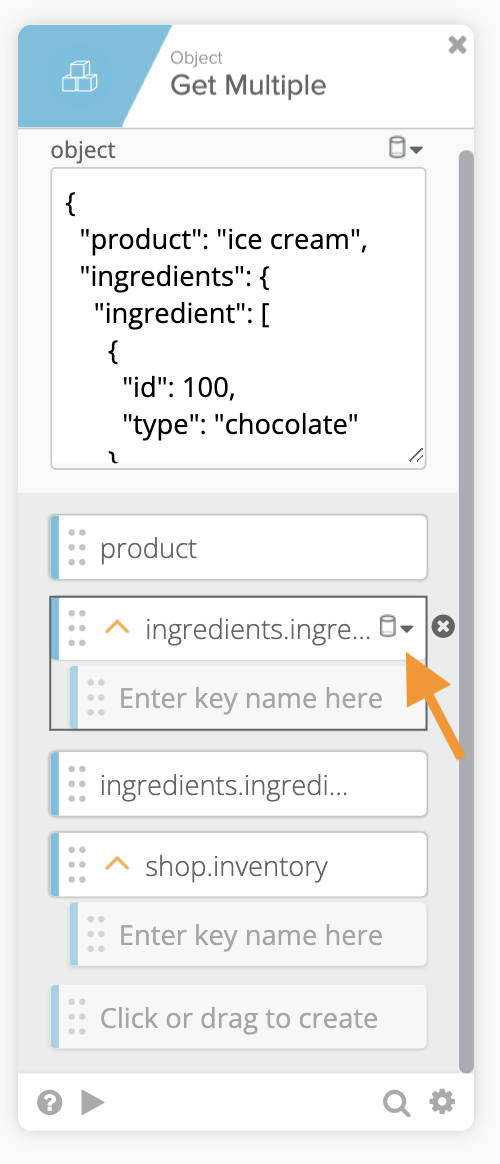 Using the Get Multiple card
Note that the output type is set on the path when using the Object – Get Multiple card.
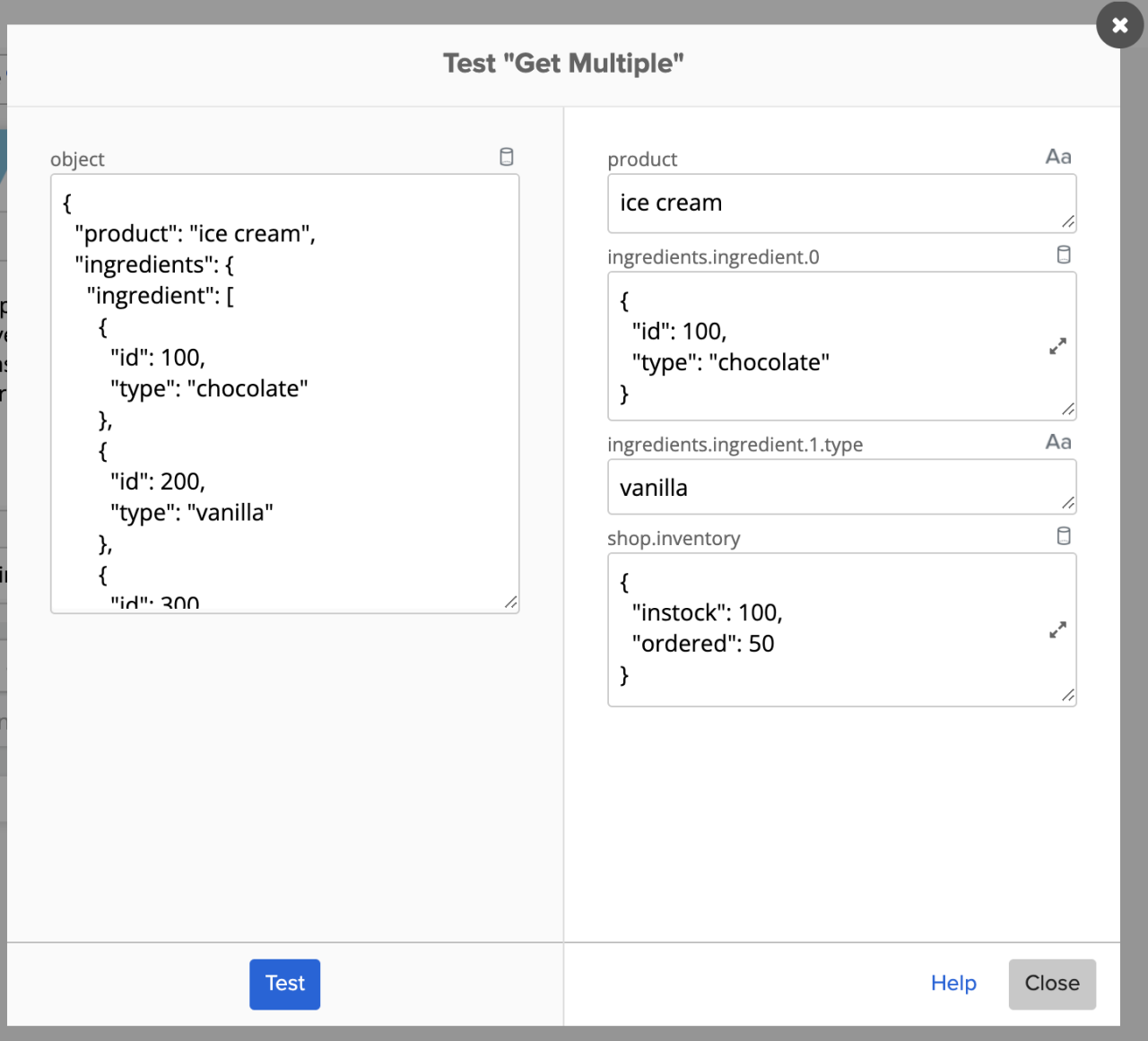 Testing the Get Multiple card
The JSONPath Online Evaluator is an online tool where you can test your dot-notation paths.
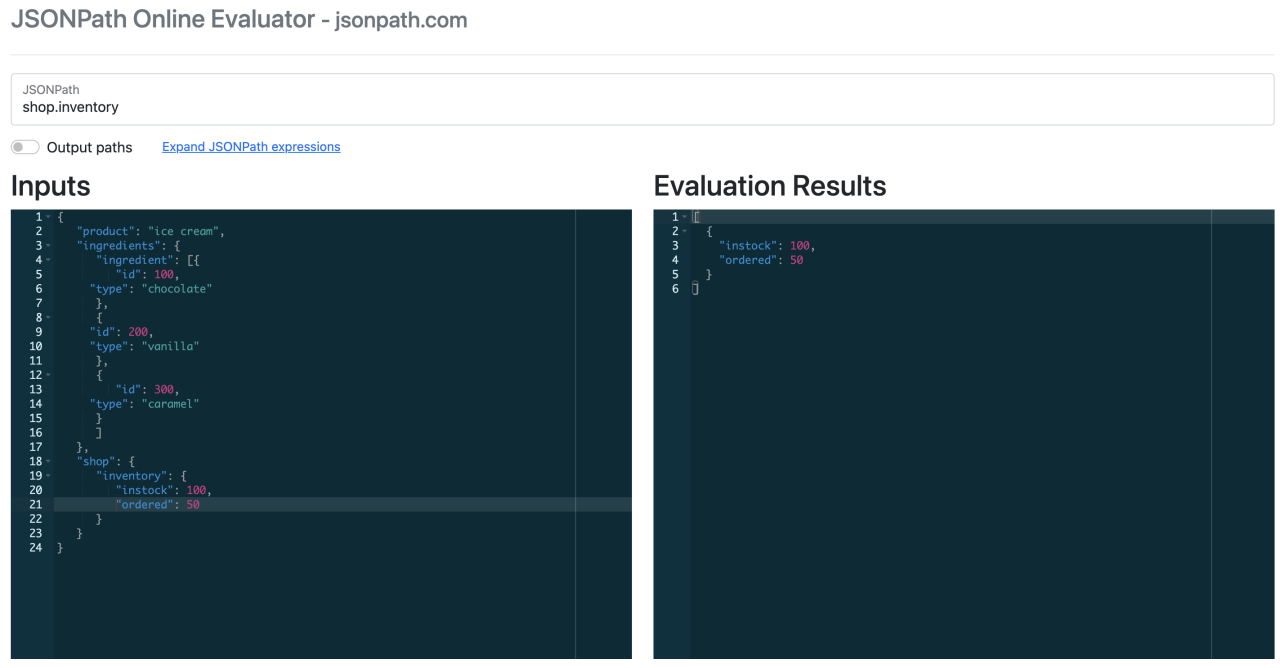 JSONPath online evaluator tool
If you need to validate (and format) a JSON sample, use the JSON Lint tool.
Get your Workflows questions answered
Do you have a question about Okta Workflows? Not sure how to build a flow? Join the weekly community office hours to get help.


